
















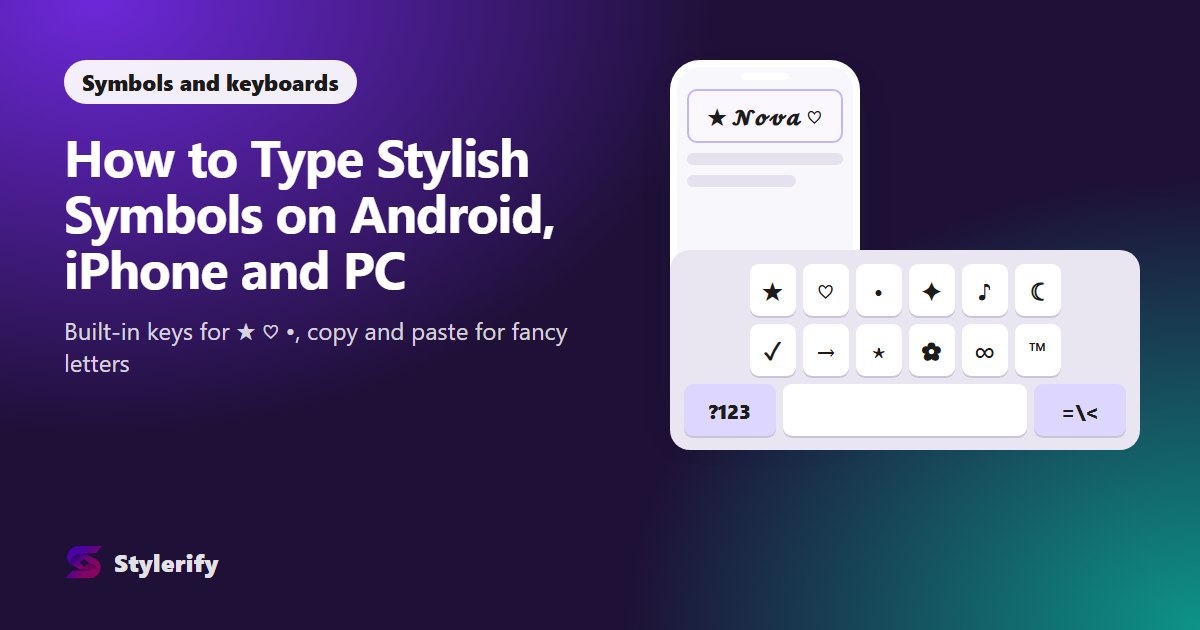
To type stylish symbols, use your keyboard's symbol pages and long-press menus for common ones such as ★ ♡ •, and copy decorative letters such as 𝓝𝓸𝓿𝓪 from a text tool, as no built-in keyboard types those. Every phone and computer has at least one built-in way in. Jump to your device below.
The fastest route depends on what you want. A single symbol such as ★ is often a long-press away. A whole name in a fancy style is a copy job: copy a symbol-ready name from the stylish name generator, or pick one symbol at a time from the symbol picker, then paste it where you need it.
Which Method Works on Your Device
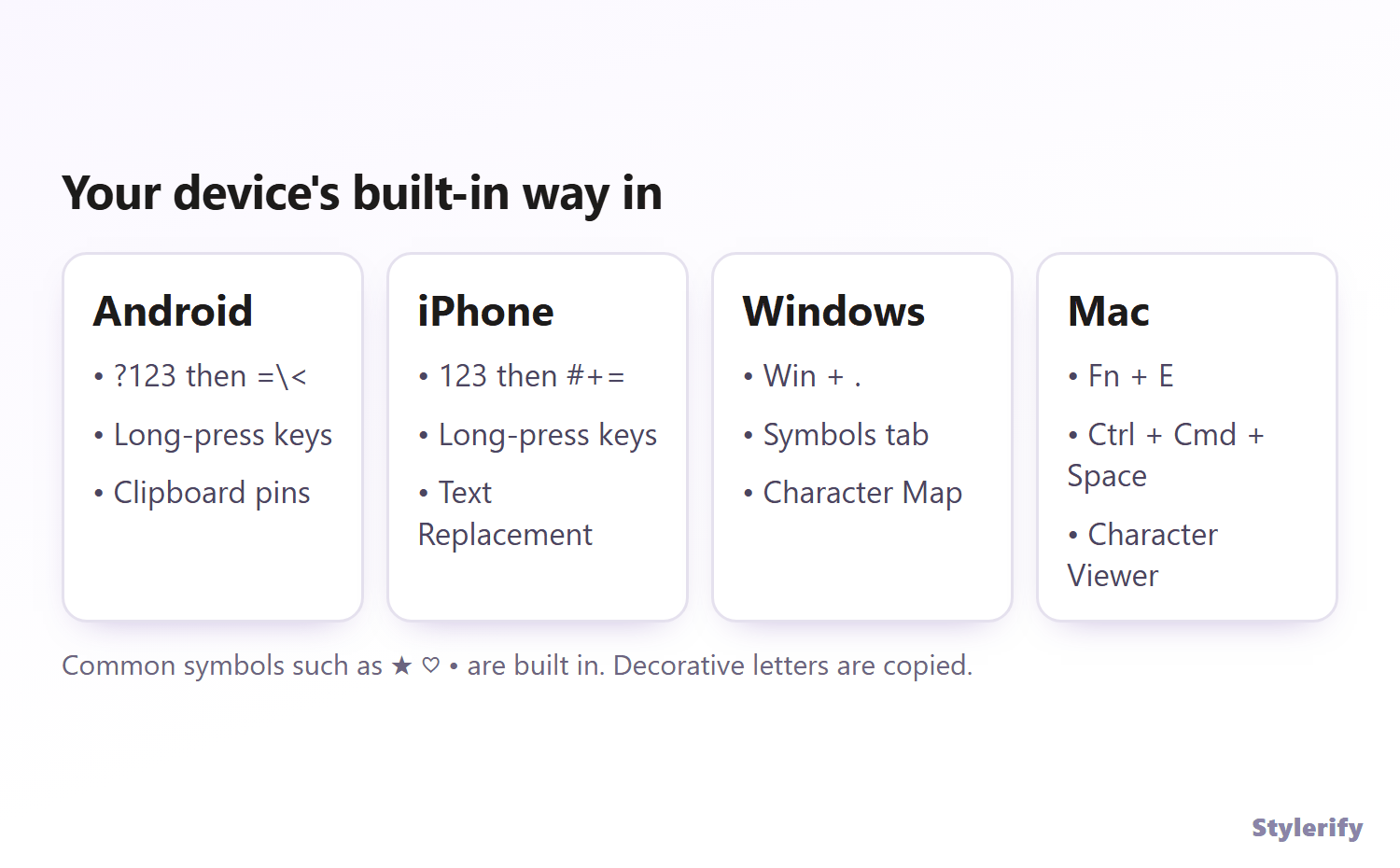
Each system has 4 kinds of built-in help: symbol keys, long-press menus, a symbol or emoji panel, and copy and paste. The table shows where each one lives.
| Device | Symbol keys | Long-press | Symbol panel | Save a symbol |
|---|---|---|---|---|
| Android (Gboard) | ?123, then =\< | Yes, on letters and symbols | Emoji panel | Pin it in the clipboard |
| Android (Samsung) | Symbols key, then 1/2 | Setting dependent | Emoji panel | Custom symbols setting |
| iPhone | Numbers key, then Symbols key | Yes | Emoji keyboard | Text Replacement |
| Windows PC | None for most symbols | No | Win + . (Symbols tab) | Clipboard history |
| Mac | Option key combinations | Yes, for accents | Character Viewer | Favourites in the viewer |
How to Type Symbols on Android
Android phones ship with different keyboards, so first check which one you use: Gboard on Pixel and many other phones, Samsung Keyboard on Galaxy phones. The steps differ, and a menu in one does not exist in the other.
Gboard
- Open the symbol page. Tap ?123 at the bottom left. Numbers and common punctuation appear.
- Open the second page. Tap =\< for more symbols, such as • ™ © ¶ and currency signs.
- Long-press for more. Google's Gboard help says to touch and hold a key to find accents and more options. On the symbol pages, holding a key opens related symbols.
- Use the emoji panel. Tap the emoji key for hearts, stars and other emoji, and tap the letters key to return to typing.
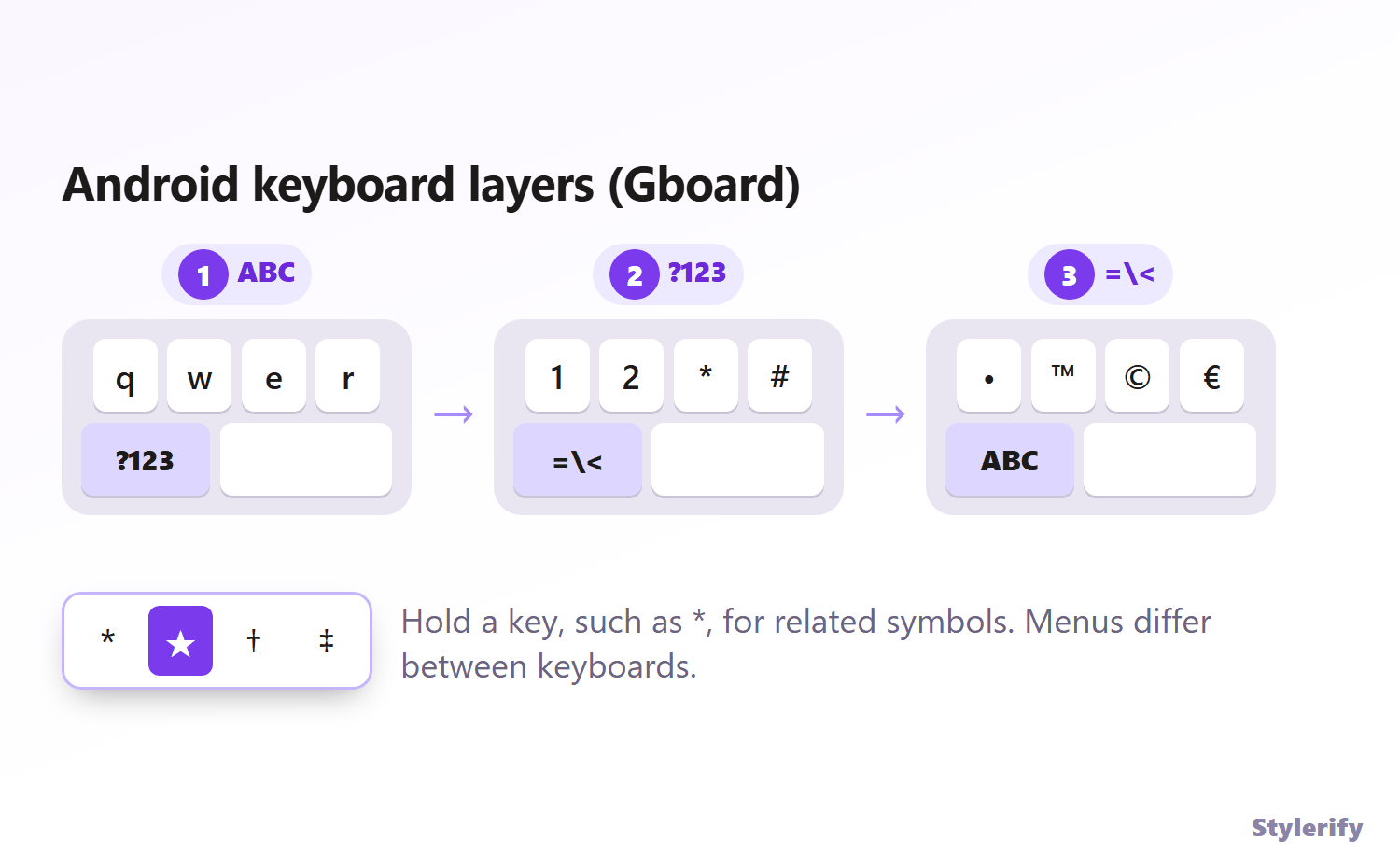
The ?123 and =\< labels come from device-maker guides for Gboard rather than Google's own help page, and they can move in new versions. Players report that holding the asterisk key on Gboard offers ★, though that menu is not documented by Google.
Gboard has a clipboard too. Tap the clipboard icon above the keys, then touch and hold a copied item and tap Pin to keep it. Pinning ★ or ♡ there saves you copying it again.
Source: Gboard help, type on Gboard; Gboard help, clipboard.
Samsung Keyboard
Samsung's support page says to switch to the symbols keyboard and tap the 1/2 key to see more symbols, and that options differ by model and software version. The clipboard sits behind the keyboard's More options key. Samsung Keyboard settings let you add custom symbols too, which puts your favourites one tap away.
Holding a letter for alternative characters is a setting on some Galaxy phones, and community answers say it can be off by default. Look in the Samsung Keyboard settings under the layout options if long-press shows nothing.
Source: Samsung support, using the keyboard.
How to Type Symbols on iPhone
On iPhone, tap the Numbers key, then the Symbols key for punctuation and common symbols. Apple's guide shows these as icon keys at the bottom left; on most layouts they read 123 and #+=.
- Switch to numbers. Tap the Numbers key (123).
- Switch to symbols. Tap the Symbols key (#+=) for the second page.
- Long-press for alternates. Apple's guide says to touch and hold a letter, number or symbol, slide to the option you want and release. Holding e gives é, for example, and several punctuation keys hold extra marks.
- Use the emoji keyboard. It holds hearts, stars and other emoji, and it has a search field for words such as "star".
Save a Symbol With Text Replacement
Text Replacement turns a short code into any text you choose, and it works with symbols the keyboard does not have. Copy ♡ once, then set it up:
- Open Settings, tap General, then Keyboard.
- Tap Text Replacement, then the add button.
- Paste ♡ into Phrase and type a short code such as
hrtinto Shortcut. Save. - Type hrt anywhere, and the keyboard offers ♡ in its suggestion bar.
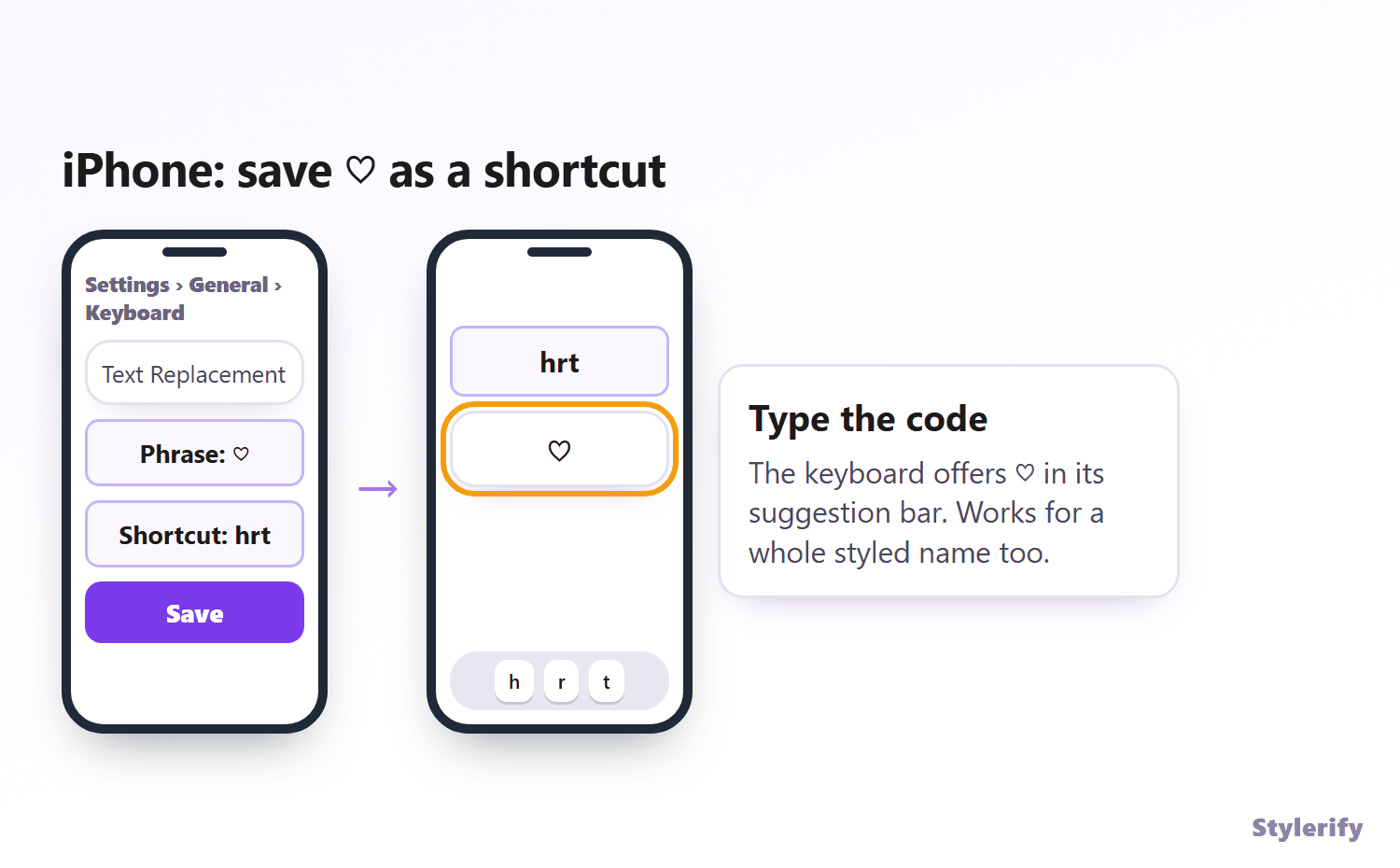
The same works for a whole styled name: paste 𝓝𝓸𝓿𝓪 as the phrase and pick a code you never type by accident.
Source: iPhone User Guide, special characters; Apple support, Text Replacement.
What the iPhone Keyboard Cannot Type
The built-in keyboard has no setting for styled letters such as 𝓝𝓸𝓿𝓪 or 𝐍𝐨𝐯𝐚. Those are separate Unicode characters rather than a font, so the way in is to copy them from a text tool, or to save them once with Text Replacement.
How to Type Special Characters on PC
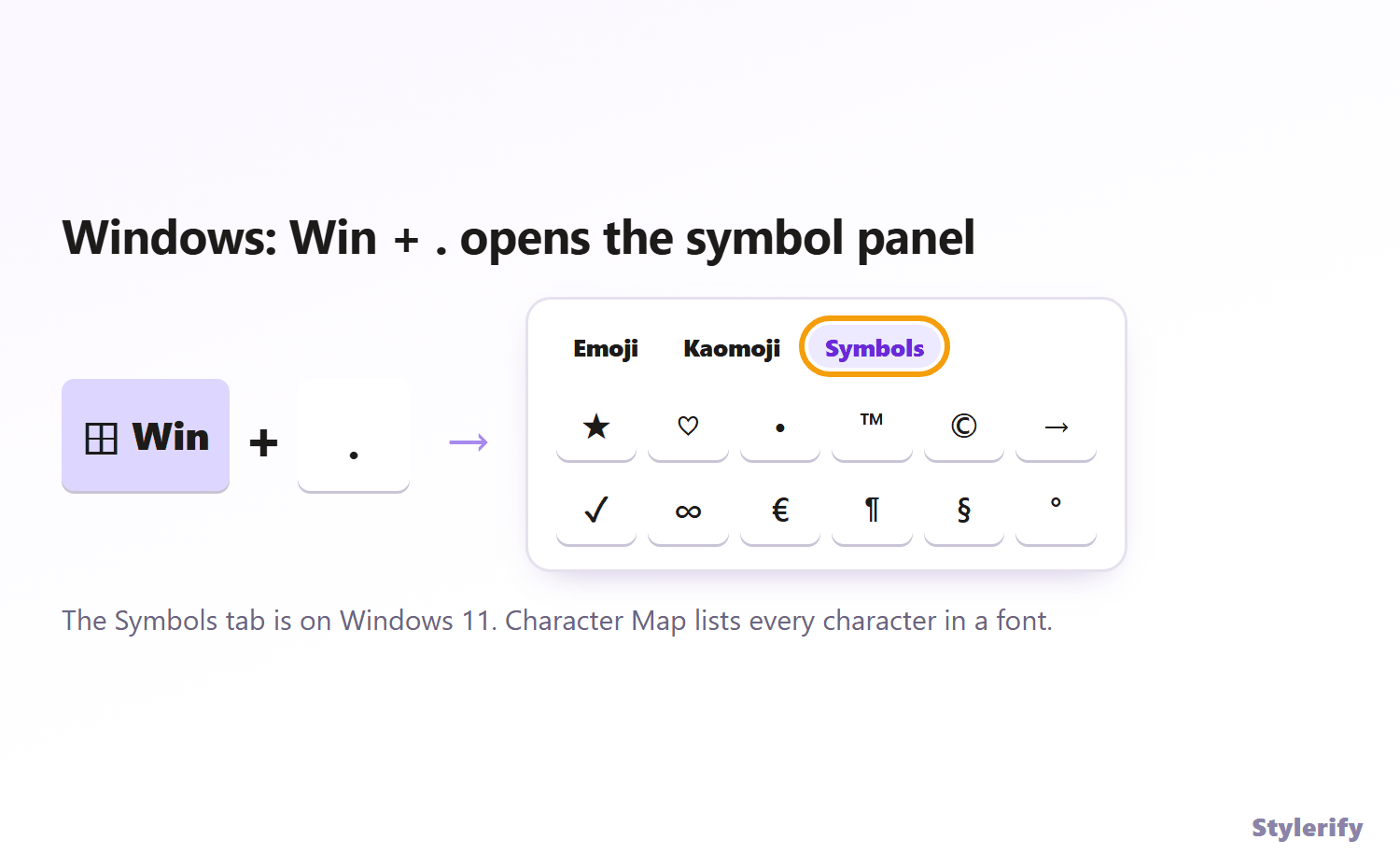
On a Windows PC, press Windows key + period (.) to open the emoji panel; Windows key + semicolon (;) works too. On Windows 11, the panel has a Symbols tab with punctuation, accented letters, currency and more.
The Emoji Panel and Its Symbols Tab
- Click where you want the symbol, in any app.
- Press Windows key + . to open the panel.
- Choose Symbols along the top (Windows 11), then a category such as general punctuation or currency.
- Click a symbol to insert it. The panel stays open for the next one.
Character Map
Character Map is a program built into Windows that lists every character in an installed font. Search for Character Map from the Start menu, pick a symbol, select it, click Copy, and paste it where you need it. It is slower than the emoji panel, and it covers far more characters.
Alt Codes
Alt codes type a symbol from a number: hold Alt and type the code on the numeric keypad, such as Alt + 0153 for ™. Microsoft says these codes only work with the numeric keypad, so the number row above the letters does not work, and many laptops need Num Lock or have no keypad at all. Alt codes cover a fixed set of older characters, not every Unicode symbol, which makes them a poor fit for decorative names.
Alt + X in Office Apps
In Microsoft Word and some other Office programs, type a character's Unicode code, such as 2605, then press Alt + X, and the code turns into ★. Microsoft notes that some Office programs, such as PowerPoint, do not convert codes this way.
Source: Windows keyboard tips and tricks; Insert symbols in Office.
Typing Symbols on a Mac
On a Mac, press Fn (Globe) + E, or Control + Command + Space, to open the Character Viewer, or choose Edit, then Emoji & Symbols, in most apps. Search for a word such as star or heart, double-click a symbol to insert it, and add the ones you use often to Favourites.
Holding a letter key opens an accent menu, as on iPhone, and the Option key gives extra characters on many keys. The Keyboard Viewer in the input menu shows which keys hold what.
Source: Mac User Guide, emoji and symbols; Mac keyboard shortcuts.
Copy and Paste Decorative Letters
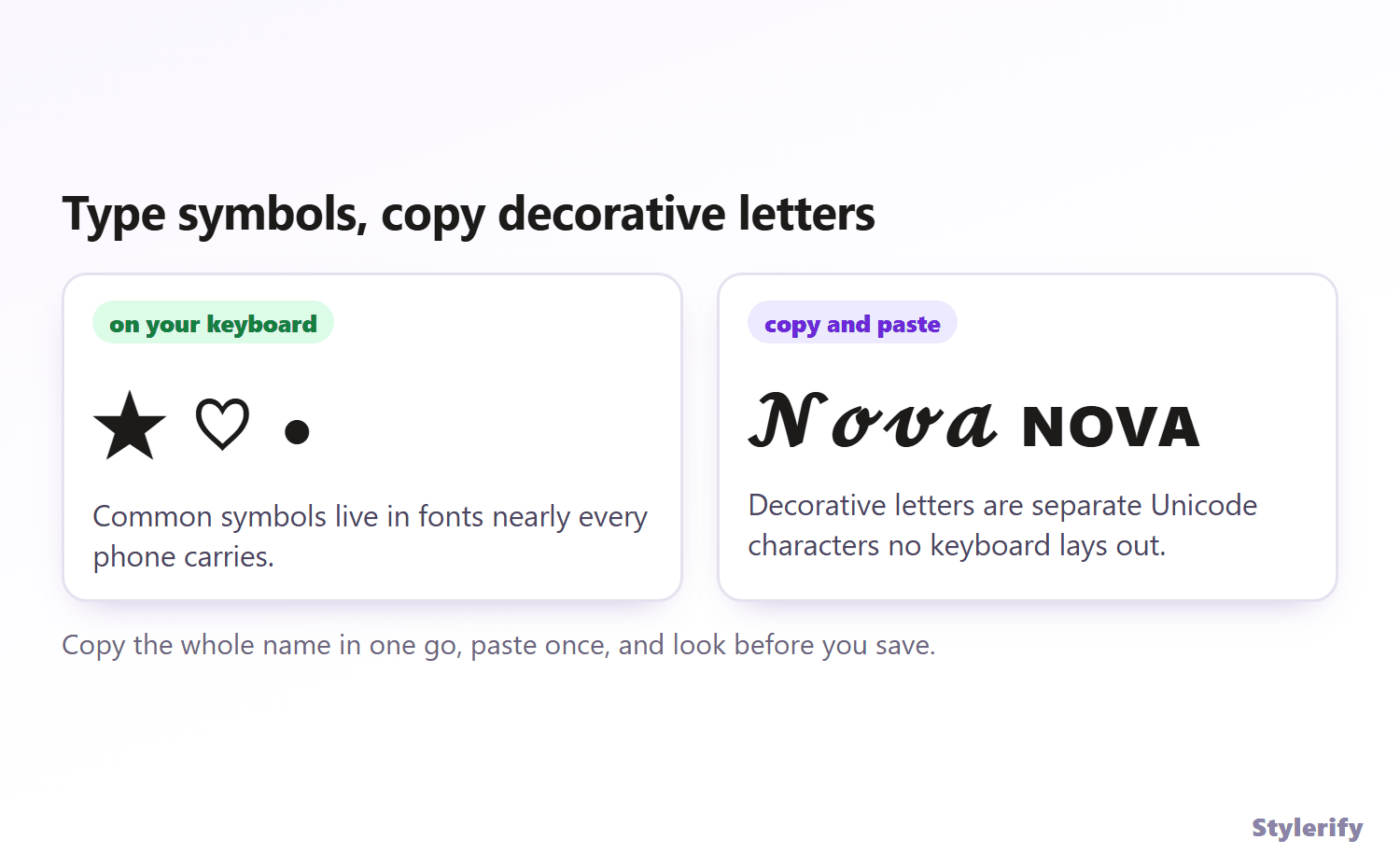
Decorative letters such as 𝓝𝓸𝓿𝓪, 𝐍𝐨𝐯𝐚 and ɴᴏᴠᴀ come from blocks of Unicode that keyboards do not lay out, so copying them is the normal way in on every device. A clean copy and paste avoids most half-pasted names:
- Copy the whole name in one go, not letter by letter.
- Paste it into the field once. Typing more characters into the middle of a pasted styled name can split a character.
- Look at the result before you save. A letter that turns plain or a symbol that vanishes means the app changed the text.
A symbol such as ★ or ♡ sits in fonts nearly every phone carries. A decorative letter such as 𝓝𝓸𝓿𝓪 is a different character from N, which is why it pastes as a whole word style and why some apps and games treat it differently from plain text.
Practical Name Check: Type One, Copy One
✓ Practical name check⏱ about 3 minutes
Goal: type one ordinary symbol with your own keyboard and copy one decorative name, then compare both in a harmless text field.
- Open a notes app, a chat with yourself or a search box. Nothing you type there is saved to an account.
- Type ★ or ♡ with one of the built-in methods above for your device.
- Open the stylish name generator with the button below, type Nova and copy a decorative version such as 𝓝𝓸𝓿𝓪.
- Paste it on the next line and compare the 2 lines at normal size.
Success check: both lines show every character clearly, with no boxes, question marks or plain letters inside the styled word.
When it fails: try another style or symbol, and read why stylish names show boxes or question marks to find the cause.
A text field shows what your device can draw. Whether a game accepts the same characters is a separate check at its rename screen.
Why a Pasted Symbol Can Look Different
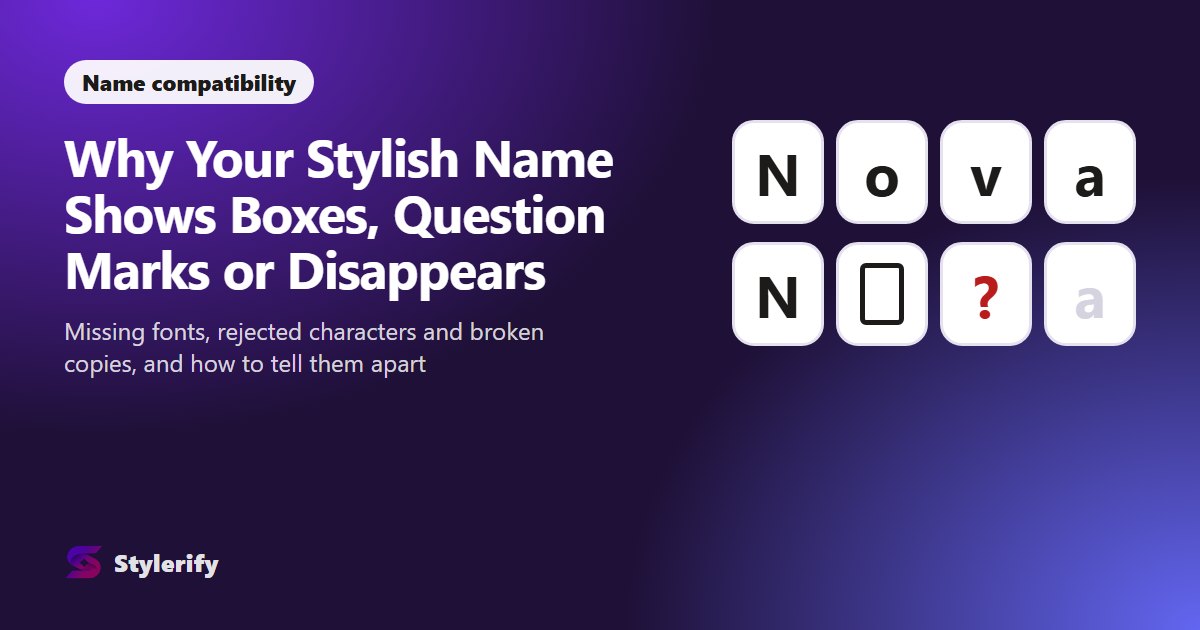
A symbol can look different after pasting for 2 main reasons: the app removed or replaced it, or the device has no font that draws it. Both show up as a gap, a box or a question mark, and only one of them is the app's choice. The guide on stylish names that show boxes, question marks or disappear explains how to tell them apart.
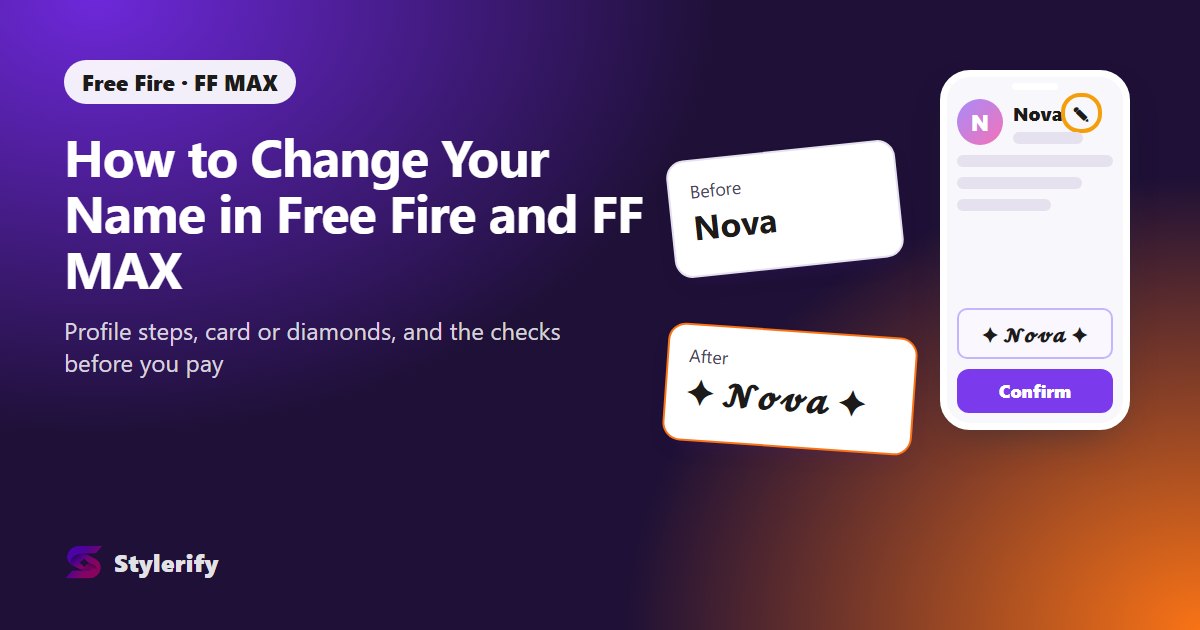
Games add their own rules on top. For the rename screens themselves, see how to change your name in Free Fire and FF MAX or how to change your name in PUBG Mobile and BGMI.
Keyboard Apps and Permissions
You do not need a new keyboard app to use stylish symbols. Copying text from a trusted website asks for no permission at all. Android warns when you turn on a new keyboard that it may be able to collect everything you type, passwords included. On iPhone, extra keyboards can ask for Full Access; Google's help for Gboard on iPhone, for example, says Full Access is what lets that keyboard search online. The built-in methods above are the safer route when an unknown "fancy font keyboard" asks for that access.
Source: Gboard help, Gboard on iPhone.
Frequently Asked Questions
Can I type symbols without installing an app?
How do I type a star or heart symbol on my phone?
Is there a Windows shortcut for symbols?
Why is a copied symbol missing after I paste it?
Do all symbols work in games?
For everyday symbols, the built-in keyboard is enough: a symbol page, a long-press or the emoji panel. For decorative letters the keyboard cannot reach, copy them once, paste them whole, and save your favourites with Text Replacement, clipboard pins or Character Viewer favourites.